
Plugins
This page includes both the PacketSnitch Themes reference and a complete Plugins reference/tutorial.
Table of Contents
- Themes Reference
- Screenshots
- Theme File Locations
- Theme JSON Schema
- Setting App Colors
- Full Variable Reference
- Custom Logo
- Optional Backdrop Wallpaper
- Opacity Controls
- Build and Test Workflow
- Troubleshooting
- Plugins Reference
- Plugin Runtime Locations
- Plugin Package Format
- Plugin Lifecycle and Runtime Contract
- hello-snitch Complete Tutorial
- Plugin Authoring Checklist
- Plugin Troubleshooting
Themes Reference
PacketSnitch uses a file-driven theming engine. A theme is a JSON file that overrides CSS variables and can optionally replace the app logo, apply a backdrop wallpaper, and tune panel transparency.
This guide covers:
- Where theme files live
- Theme JSON schema
- How to set app colors
- How to set a custom logo
- How to set a backdrop wallpaper
- How to control opacity and panel translucency
- How the app validates/falls back when a theme is invalid
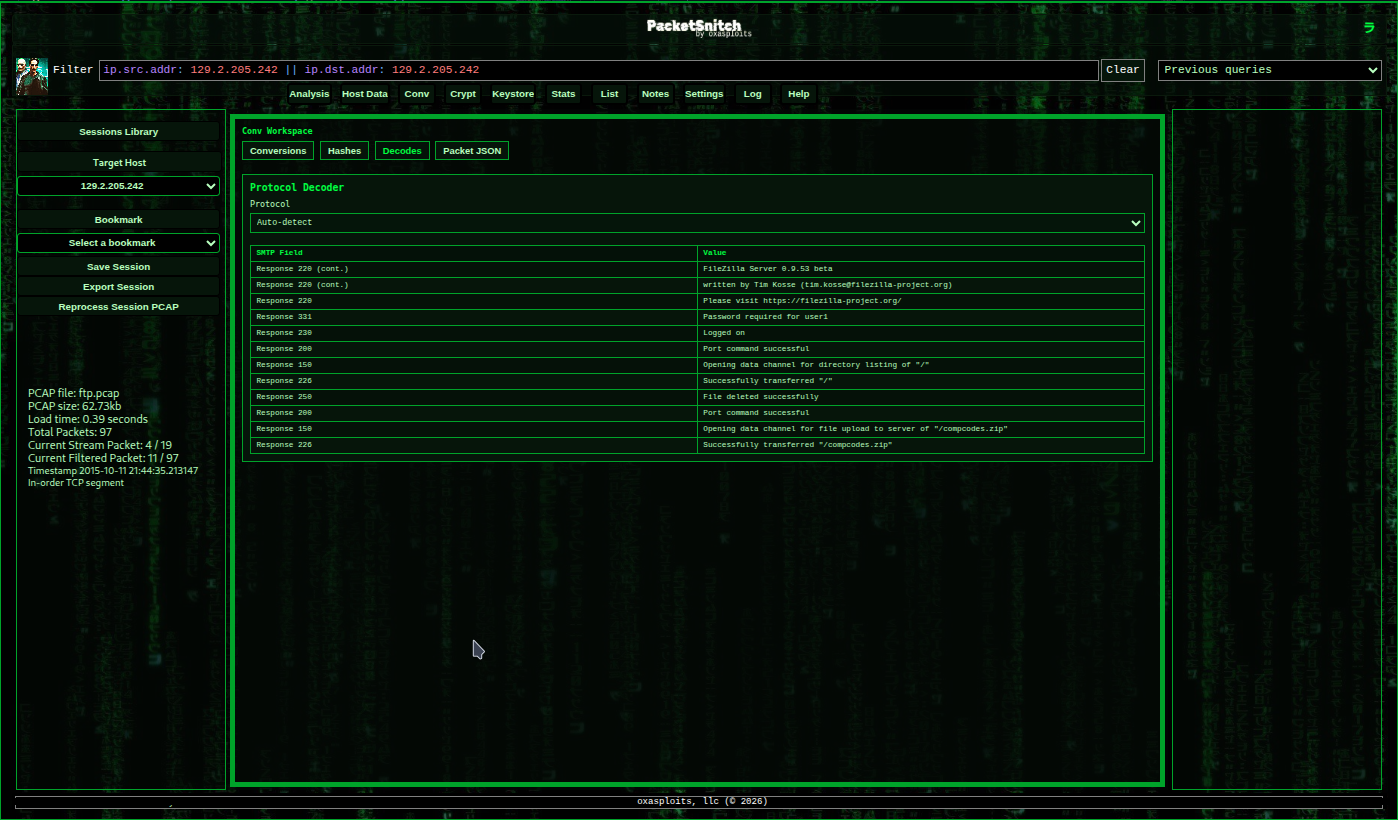
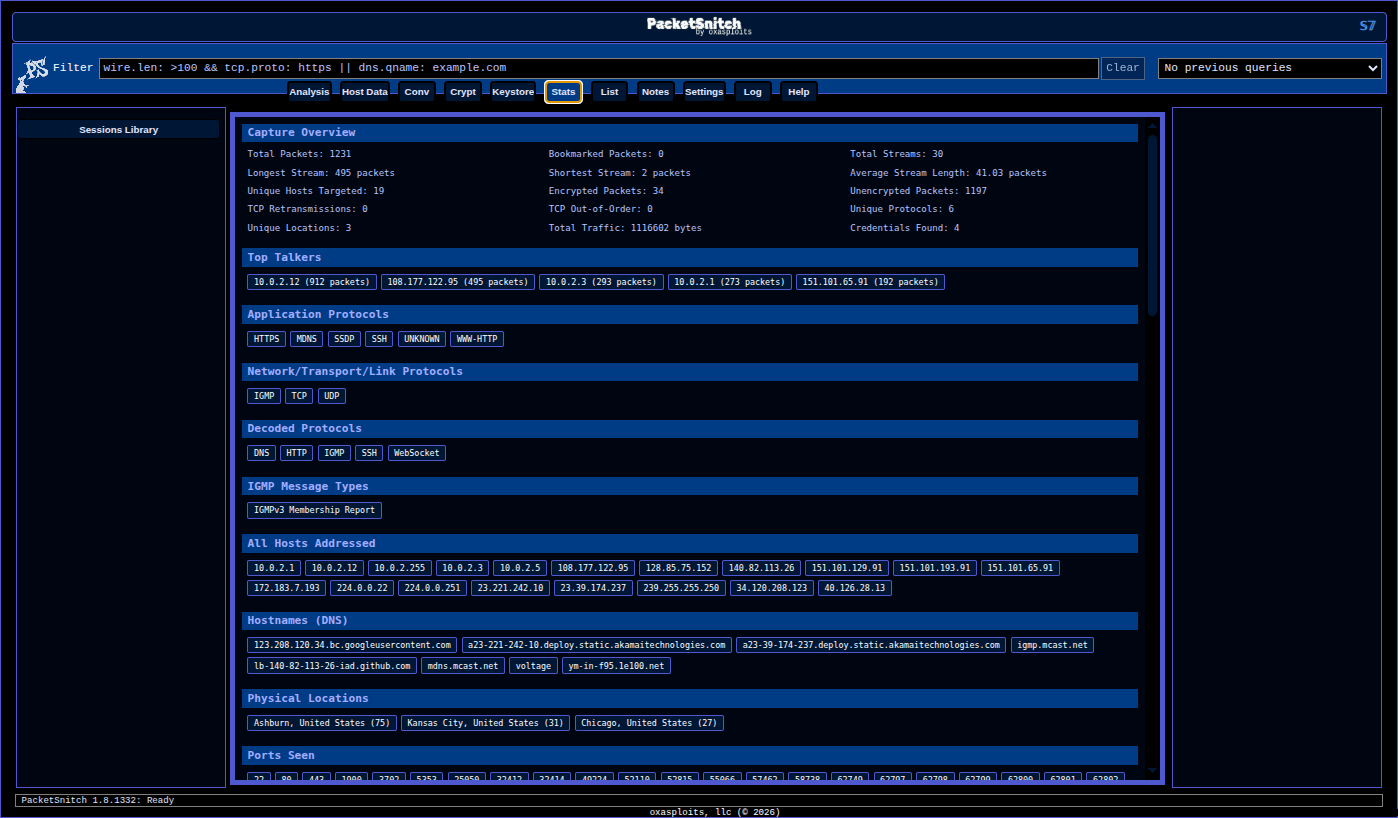
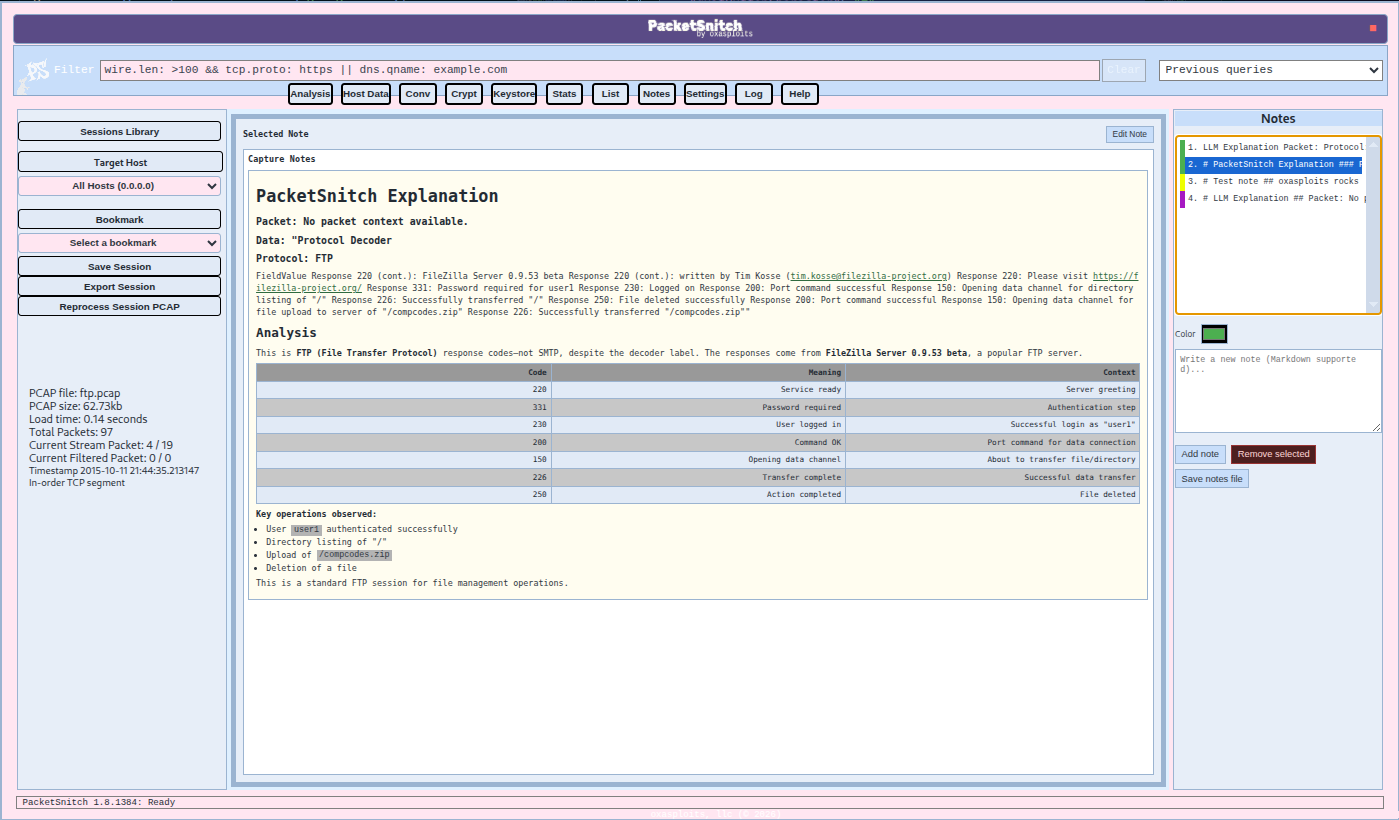
Screenshots
Screenshot of the "Matrix" theme.
Also a cobalt/black "Sub7" inspired theme.
A lighter, airy pastels theme, "Nilla Horizon".
Theme File Locations
PacketSnitch uses two theme locations:
- Windows the userdir usually resolves to
C:\Users\Username\AppData\Roaming\packetsnitch\themes\*.json. - Linux it ususally resolves to
/home/username/.config/packetsnitch/themes/*.json.
At startup, PacketSnitch ensures default themes exist in userData/themes. The Settings tab reads from this runtime directory.
In-app, open Settings → General and check the theme-directory hint text to find the exact path on your system.
Theme JSON Schema
A valid theme must have a non-empty variables object with CSS custom properties.
{
  "id": "my_custom_theme",
  "name": "My Custom Theme",
  "description": "Optional description shown in docs/source",
  "variables": {
    "--app-bg": "#101418",
    "--surface-0": "#0b0f13",
    "--surface-1": "#151c24",
    "--surface-2": "#111820",
    "--color-1": "#9ad8ff",
    "--color-5": "#d7e9f7",
    "--tab-inactive-opacity": "0.72"
  },
  "logoImage": {
    "format": "png",
    "base64": "iVBORw0KGgoAAAANSUhEUgAA..."
  },
  "backdropImage": {
    "format": "jpg",
    "base64": "/9j/4AAQSkZJRgABAQAAAQABAAD..."
  }
}
Field Rules
id: sanitized to lowercase with onlya-z,0-9,_,-name: display label shown in Settingsdescription: optional textvariables: required, must include at least one valid CSS variable key/valuequitButtonCharacter: optional single-character override for the app quit button labellogoImage: optionalbackdropImage: optional
Validation behavior:
- Only variable keys starting with
--are applied. - Variable values must be non-empty strings.
- If
variablesis empty/invalid, the theme file is ignored. - Invalid JSON files are skipped (the app continues running).
- Duplicate theme IDs are de-duplicated.
Setting App Colors
The base color system is driven by CSS custom properties in src/assets/css/style.css.
Tip: start from an existing file in themes/, then change values incrementally.
Full Variable Reference
The variables below are currently consumed by PacketSnitch styles and can be set in theme.variables.
Core Surfaces and UI Colors
--app-bg: app/page background.--surface-0: primary workspace surface.--surface-1: secondary panel surface.--surface-2: tertiary surface token (available for themes).--scrollbar-track: scrollbar track color.--border-strong: stronger border color used by major frames.--color-1: primary accent/foreground token.--color-2: secondary accent/background token.--color-2-hover: hover state for secondary accents.--color-3: common border/outline token used widely.--color-4: muted panel/background token.--color-5: primary readable foreground text token.--color-6: secondary readable foreground text token.--color-7: shared panel background token.
Header, Sidebar, Inputs, and App Chrome
--top-bar-bg: top title/tagline bar background (center logo/tagline strip).--header-text-color: heading/title text color.--sidebar-text-color: sidebar text color.--input-bg-color: text/select input background.--input-text-color: text/select input foreground.--quit-btn-color: quit button color.--quit-btn-hover-color: quit button hover color.--stats-tag-text-color: stats tag text color.--notes-link-color: markdown preview link color in notes.--notes-markdown-bg: markdown preview background color in notes.--crypt-panel-bg: crypt workspace panel background.--crypt-panel-text: crypt workspace text color.
Data Tools Workspace Variables
--data-tools-frame-bg: data tools frame background.--data-tools-frame-color: data tools frame text color.--data-tools-frame-border: data tools frame border color.--data-tools-hex-color: hex conversion accent/border color.--data-tools-binary-color: binary conversion accent/border color.--data-tools-decimal-color: decimal conversion accent/border color.--data-tools-decimal-integer-color: decimal-integer conversion accent/border color.--data-tools-ascii-color: ASCII conversion accent/border color.--data-tools-base64-color: Base64 conversion accent/border color.
Activity Log Variables
--log-bg: activity log background.--log-text: activity log text.
Typography and Layout Variables
--body-font-family: global body font family.--panel-bg-opacity: panel background opacity mix percentage (0%-100%). Lower values let the backdrop wallpaper show through panel surfaces.--tab-inactive-opacity: inactive tab opacity (string value from0to1).--sidebar-width: sidebar width token used in layout sizing.
Internal Utility Tokens (Usually Leave Alone)
These are internal sizing helpers used by the filter input/clear button layout.
--filter-clear-button-width--filter-clear-padding--filter-clear-right-offset
You can override them, but values that are too small/large may cause overlap or clipping in the filter controls.
Custom Logo
You can set a per-theme logo with logoImage.
Supported formats:
pngjpg(orjpeg, normalized tojpg)
Supported payload fields:
logoImage.base64logoImage.data
If a data URI prefix is included (for example data:image/png;base64,...), PacketSnitch strips it automatically.
Example:
"logoImage": {
  "format": "jpg",
  "base64": "/9j/4AAQSkZJRgABAQAAAQABAAD..."
}
If logoImage is missing or invalid, PacketSnitch falls back to the default app logo.
Optional Backdrop Wallpaper
You can set a full-app backdrop wallpaper with backdropImage.
This image is rendered in the dedicated backdrop layer behind the full UI stack.
Hint: Animated .png images (APNG format) are supported by the theme engine, however, I just personally think they are too distracting to be practical in this use case.
Supported formats:
pngjpg(orjpeg, normalized tojpg)
Supported payload fields:
backdropImage.base64backdropImage.data
Example:
"backdropImage": {
  "format": "jpg",
  "base64": "/9j/4AAQSkZJRgABAQAAAQABAAD..."
}
If backdropImage is missing or invalid, PacketSnitch shows no wallpaper and uses standard theme backgrounds only.
Opacity Controls
Theme opacity is controlled with CSS variable values where supported.
Most useful controls:
--tab-inactive-opacity: inactive tab button opacity (0to1)--panel-bg-opacity: major panel/chrome background mix percentage (0%to100%) used to let backdrop wallpaper show through
Example:
"variables": {
  "--tab-inactive-opacity": "0.60",
  "--panel-bg-opacity": "84%"
}
Recommended starting points:
--panel-bg-opacity: "80%"to"92%"for subtle translucency--tab-inactive-opacity: "0.55"to"0.75"for readable but dimmed inactive tabs
Build and Test Workflow
- Copy an existing theme JSON in
packetsnitch/themes. - Rename file and update
id/name. - Modify
variables(and optionallogoImage/backdropImage). - Open Settings → General and select your theme.
- Save settings.
- If needed, reopen Settings or restart the app to refresh newly added files.
Troubleshooting
Theme does not appear in Settings:
- Confirm file extension is
.json. - Confirm JSON is valid.
- Confirm
variablesexists and has at least one--variablestring value. - Confirm the file is in
~/.config/PacketSnitch/themesorC:\Users\Username\AppData\Roaming\packetsnitch\themes. - Make sure the variables are in the correct places in the json, check all commas are where they should be, and make sure variables are not duplicated.
Theme appears but styles do not change:
- Confirm variable names exactly match CSS variable names used by the app.
- Confirm values are valid CSS strings (
#hex,rgb(...), numeric string for opacity).
Logo does not render:
- Confirm
formatispng,jpg, orjpeg. - Confirm base64 payload is valid and non-empty.
- Remove line breaks/whitespace from base64 if needed.
- A good way to get a valid base64 for an image is:
cat image.png | base64 -w0 | wl-copy
Backdrop wallpaper does not render:
- Confirm
backdropImage.formatispng,jpg, orjpeg. - Confirm
backdropImage.base64is valid base64. - If using custom runtime themes, ensure you edited the active file in
userData/themesand restart the app if needed.
Wallpaper renders but is hard to notice:
- Lower
--panel-bg-opacity(for example from100%to70%). - Ensure your panel surfaces are not fully opaque overrides in the selected theme.
Plugins Reference
PacketSnitch includes a built-in plugin engine with install, inspect, enable/disable, runtime loading, failure tracking, and uninstall workflows.
This section covers:
- Where plugin files are stored at runtime
- Plugin package/manifest requirements
- Runtime lifecycle (
init/dispose) and host context - Safe plugin loading behavior and compatibility checks
- A complete
hello-snitchplugin tutorial with full sample code
Plugin Runtime Locations
PacketSnitch stores plugin runtime files under the app userData directory:
- Plugin registry:
userData/config/plugins.json - Installed zip packages:
userData/plugins/packages/ - Extracted plugin code:
userData/plugins/installed/
Registry entries persist enabled state, priority, failure counts, compatibility metadata, and install paths.
Plugin Package Format
Plugins are installed from a .zip file via Settings → Plugins → Install Plugin Zip.
A plugin zip must contain a plugin.json manifest and a runtime entry file (defaults to plugin.js unless entry is set in the manifest).
Archive safety and validation behavior:
- Unsafe archive paths are rejected (
.., absolute paths, invalid extraction paths). plugin.jsonmust parse as a JSON object.- Required fields:
pluginName(ornamefallback)pluginVersion(orversionfallback)capabilities(non-empty array)compatiblePacketsnitchVersions(non-empty array)
- Optional metadata:
author,authorHomepage,updateUrl,priority,entry
- Version compatibility is checked before install; incompatible plugins are rejected.
- Declared capabilities are shown to the user during install review before confirmation.
- Capability tokens are normalized to lowercase and de-duplicated at runtime.
Plugin Lifecycle and Runtime Contract
When a plugin is enabled, the frontend loads it through window.pluginapi.loadRuntime(...).
Accepted runtime export styles:
- Export an object with
init(context) - Export a function (called as the initializer)
When disabling/unloading, PacketSnitch calls (if present):
dispose(context)- else
deinit(context) - else
shutdown(context)
The runtime context includes:
plugin: normalized plugin registry entrypacketsnitchVersion: current app versionpermissions: permission helpers (list,has,assert,catalog)api: capability-gated helper namespaces (version,ui,fs,network,packetsnitch,backend,capture,stats,keystore,filter)documentRef: guarded DOM handle (writes requireui.dom.write)windowRef: guarded window handle (writes requireui.dom.write)statusUpdate(message): status bridge (requiresui.statusbar.modify)writeLogEntry(message): app activity log bridge (requiresplugin.log.write)
Capability Catalog (Dot Notation)
Canonical source file: src/preload.js (PLUGIN_CAPABILITY_CATALOG)
version.readui.dialog.addui.dom.writeui.tabs.createui.tabs.modifyui.contextmenu.createui.contextmenu.modifyui.statusbar.modifyfs.readfs.writefs.executefs.chmodnetwork.fetch.httpnetwork.socket.listennetwork.socket.connectpacketsnitch.functions.usepacketsnitch.functions.overwritebackend.talkpacket.metadata.readsession.pcap.readstats.json.readkeystore.readkeystore.writefilter.queryplugin.log.write
Capability Endpoints and Hook Usage
Plugins interact with the runtime through the context object passed to init(context) and the matching teardown hook (dispose(context), deinit(context), or shutdown(context)). The safest pattern is:
- Check grants first with
context.permissions.has(capability). - Fail fast with
context.permissions.assert(capability, reason)when a capability is required. - Use
context.permissions.listorcontext.permissions.catalogto inspect what the plugin received. - Use
context.documentRefandcontext.windowRefwhen you need DOM access; writes on those guarded handles requireui.dom.write.
Example:
export async function init(context) {
  if (!context.permissions.has("filter.query")) {
    return;
  }

  const result = await context.api.filter.query("ip.src.addr: 10.0.0.1", {
    mode: "background",
  });

  context.statusUpdate(`Matched ${result.packetKeys.length} packets`);
}
The following capabilities map to the following hook endpoints:
version.read->context.api.version.read()returns the current PacketSnitch version string.ui.dialog.add->context.api.ui.dialog.alert(message),confirm(message), andprompt(message, defaultValue).ui.dom.write->context.api.ui.dom.query(selector)andsetText(selector, text); guarded DOM writes also apply tocontext.documentRefandcontext.windowRef.ui.tabs.create->context.api.ui.tabs.create({ id, label }).ui.tabs.modify->context.api.ui.tabs.modify({ id, label, hidden }).ui.contextmenu.create->context.api.ui.contextMenu.create({ id, text, onClick }).ui.contextmenu.modify->context.api.ui.contextMenu.modify({ id, text, hidden }).ui.statusbar.modify->context.api.ui.statusBar.setText(message)or the directcontext.statusUpdate(message)hook.fs.read->context.api.fs.readText(filePath, encoding)andcontext.api.fs.homeDirectory().fs.write->context.api.fs.writeText(filePath, content, encoding).fs.execute->context.api.fs.execute(command, options).fs.chmod->context.api.fs.chmod(filePath, mode).network.fetch.http->context.api.network.fetch(url, init)or the directcontext.fetch(url, init)hook; onlyhttp:andhttps:URLs are allowed.network.socket.listen->context.api.network.socketListen({ host, port }).network.socket.connect->context.api.network.socketConnect({ host, port, timeoutMs }).packetsnitch.functions.use->context.api.packetsnitch.useFunction(name, ...args)calls an exposed host function by name.packetsnitch.functions.overwrite->context.api.packetsnitch.overwriteFunction(name, wrapperFactory)wraps a host function and returns a restore callback.backend.talk->context.api.backend.invoke(channel, ...args)calls one of the allowlisted backend channels:lookup-backend-geoip,lookup-backend-whois,lookup-backend-ipsum,lookup-backend-tor,lookup-backend-shodan,get-backend-diagnostics, orcontrol-backend-service.packet.metadata.read->context.api.capture.getCurrentPacketKey(),getCurrentPacketMetadata(), andgetCurrentStreamTuple().session.pcap.read->context.api.capture.getSessionPcapSource().stats.json.read->context.api.stats.getJson().keystore.read->context.api.keystore.getSessionEntries().keystore.write->context.api.keystore.addSessionEntry(entry)andaddSessionEntries(entries).filter.query->context.api.filter.query(expression, options).plugin.log.write->context.writeLogEntry(message)writes to the activity log.
context.api Return Types
The API is grouped into namespaces. These are the concrete return types exposed by each method:
context.api.version.read()->stringcontext.api.ui.dialog.alert(message)->voidcontext.api.ui.dialog.confirm(message)->booleancontext.api.ui.dialog.prompt(message, defaultValue)->string | nullcontext.api.ui.statusBar.setText(message)->voidcontext.api.ui.tabs.create({ id, label })->{ id: string, label: string }context.api.ui.tabs.modify({ id, label, hidden })->{ id: string, label: string, hidden: boolean }context.api.ui.contextMenu.create({ id, text, onClick })->{ id: string, text: string }context.api.ui.contextMenu.modify({ id, text, hidden })->{ id: string, text: string, hidden: boolean }context.api.ui.dom.query(selector)->Element | nullcontext.api.ui.dom.setText(selector, text)->{ updated: boolean }context.api.fs.readText(filePath, encoding)->Promise<string>context.api.fs.writeText(filePath, content, encoding)->Promise<{ success: true, path: string }>context.api.fs.chmod(filePath, mode)->Promise<{ success: true, path: string, mode: number }>context.api.fs.execute(command, options)->Promise<{ stdout: string, stderr: string }>context.api.fs.homeDirectory()->stringcontext.api.fs.joinPath(...segments)->stringcontext.api.network.fetch(url, init)->Promise<Response>context.api.network.socketConnect({ host, port, timeoutMs })->Promise<{ success: true, host: string, port: number }>context.api.network.socketListen({ host, port })->Promise<{ success: true, host: string, port: number }>context.api.packetsnitch.useFunction(name, ...args)-> return value of the host function you calledcontext.api.packetsnitch.overwriteFunction(name, wrapperFactory)->() => voidrestore callbackcontext.api.backend.invoke(channel, ...args)->Promise<any>context.api.capture.getCurrentPacketKey()->string | nullcontext.api.capture.getCurrentPacketMetadata()->object | nullcontext.api.capture.getCurrentStreamTuple()->object | nullcontext.api.capture.getSessionPcapSource()->Promise<object | null>context.api.stats.getJson()->object | nullcontext.api.keystore.getSessionEntries()->object[]context.api.keystore.addSessionEntry(entry)->objectwithsuccess,added, andentrycontext.api.keystore.addSessionEntries(entries)->objectwithsuccess,addedCount, andentriescontext.api.filter.query(expression, options)->Promise<object>; background mode returns{ success, mode, expression, packetKeys }and UI mode returns{ success, mode, expression, ...uiResult }context.writeLogEntry(message)->Promise<{ success: boolean, denied?: boolean, capability?: string }>
context.api.filter.query(...) supports two modes:
- Background mode (
{ mode: "background" }): executes filter matching via capture-store without applying the filter in the visible UI. - UI mode (
{ mode: "ui", trackHistory?: boolean }): applies the filter through the renderer UI path and returns matched packet keys.
Example:
const packetMeta = context.api.capture.getCurrentPacketMetadata();
const statsJson = context.api.stats.getJson();
const writeResult = context.api.keystore.addSessionEntry({
  type: "secret",
  label: "Plugin Generated Token",
  content: "example-token",
  source: "plugin-manual",
});
const keysBg = await context.api.filter.query("ip.src.addr: 10.0.0.1", {
  mode: "background",
});
const keysUi = await context.api.filter.query("tcp.dst.port: 443", {
  mode: "ui",
  trackHistory: true,
});
Runtime policy behavior:
- Capabilities are enforced for guarded host bridges (
context.api.*,context.permissions.*, guardeddocumentRef/windowRef,context.fetch,statusUpdate,writeLogEntry). - Sensitive operations on guarded APIs are denied unless the required capability is declared.
- Denied operations are logged to Activity Log with plugin ID and reason.
- Exact tokens,
*, and namespace wildcards (for examplenetwork.*) are supported by capability matching. - This is not an OS/container sandbox; plugins should use guarded APIs to remain compatible with policy enforcement.
Legacy alias normalization:
ui.message->ui.statusbar.modifyui.tab->ui.tabs.createui.contextmenu->ui.contextmenu.createfilesystem.read->fs.readfilesystem.write->fs.writedocuments.write->ui.dom.writenetwork.fetch->network.fetch.httpstatus.wrap->packetsnitch.functions.overwrite
Failure handling and safety:
- Runtime errors are shown in the Settings Plugins error panel.
- Critical failures increment per-plugin failure count.
- Plugins auto-disable when failure count reaches threshold.
- Threshold can be global or per-plugin override.
hello-snitch Complete Tutorial
The sample plugin is in samples/plugins/hello-snitch.
It demonstrates:
- Creating a custom tab + panel in the PacketSnitch UI.
- Adding an action into the global context menu.
- Reading/writing a local file (
~/Documents/hello-snitch-version.txt). - Fetching remote data over HTTPS.
- Wrapping host callbacks safely and restoring on dispose.
Step 1: Create plugin directory
mkdir -p my-plugin
cd my-plugin
Step 2: Create manifest (plugin.json)
Use this complete sample manifest:
{
  "pluginName": "hello-snitch",
  "version": "1.0.0",
  "pluginVersion": "1.0.0",
  "author": "oxagast",
  "authorHomepage": "https://packetsnitch.com",
  "updateUrl": "https://packetsnitch.com/plugins/hello-snitch",
  "capabilities": [
    "version.read",
    "ui.dialog.add",
    "ui.dom.write",
    "ui.tabs.create",
    "ui.tabs.modify",
    "ui.contextmenu.create",
    "ui.contextmenu.modify",
    "ui.statusbar.modify",
    "fs.read",
    "fs.write",
    "network.fetch.http",
    "packetsnitch.functions.use",
    "packet.metadata.read",
    "session.pcap.read",
    "stats.json.read",
    "keystore.read",
    "keystore.write",
    "filter.query",
    "plugin.log.write"
  ],
  "compatiblePacketsnitchVersions": [
    ">=2.0.0"
  ],
  "priority": 100,
  "entry": "hello.js",
  "description": "Comment-heavy tutorial plugin showing UI tab creation, context menu action wiring, file IO, remote fetch, and safe callback wrapping patterns."
}
Step 3: Create runtime (hello.js)
Use this complete hello-snitch runtime script:
/*
 * hello-snitch tutorial plugin
 *
 * This sample is intentionally comment-heavy. It demonstrates common plugin patterns:
 * 1) Add custom UI (tab + panel)
 * 2) Add an action into the existing right-click context menu
 * 3) Read/write files from plugin code
 * 4) Fetch remote data over HTTP(S)
 * 5) Safely wrap (override) host callbacks and clean them up in dispose()
 */

(function helloSnitchPluginBootstrap() {
  // --- Stable IDs used by this plugin ---------------------------------------------------------
  // Keep these in constants so we can cleanly remove UI in dispose().
  const HELLO_TAB_BTN_ID = "hello-snitch-tab-btn";
  const HELLO_TAB_BOX_ID = "hello-snitch-box";
  const HELLO_TEXT_ID = "hello-snitch-version-text";
  const HELLO_FETCH_BTN_ID = "hello-snitch-fetch-btn";
  const HELLO_FETCH_RESULT_ID = "hello-snitch-fetch-result";
  const HELLO_CONTEXT_MENU_BTN_ID = "ctx-hello-open";

  // PacketSnitch has several main content panes. This mirrors app behavior when switching tabs.
  const MAIN_BOX_IDS = [
    "summary_box",
    "stats_box",
    "data_tools_box",
    "crypt_box",
    "keystore_box",
    "list_box",
    "notes_box",
    "settings_box",
    "packetInfoPane",
    "packetPayloadPane",
  ];

  // Small runtime state holder so init()/dispose() can coordinate cleanup.
  const runtimeState = {
    wrappedStatusUpdateRestore: null,
    lastOutputPath: "",
  };

  // --- Utility: hide default panes and show our panel -----------------------------------------
  function hideDefaultBoxes(documentRef) {
    MAIN_BOX_IDS.forEach((id) => {
      const el = documentRef.getElementById(id);
      if (el) {
        el.style.display = "none";
      }
    });
  }

  function showHelloPanel(documentRef) {
    hideDefaultBoxes(documentRef);
    const helloBox = documentRef.getElementById(HELLO_TAB_BOX_ID);
    if (helloBox) {
      helloBox.style.display = "block";
    }
  }

  // --- UI creation ----------------------------------------------------------------------------
  // Pattern: create elements only once, and make sure IDs are unique.
  function ensureHelloUi(documentRef) {
    const tabBar = documentRef.getElementById("tab-btns");
    const mainPanel = documentRef.getElementById("main");
    if (!tabBar || !mainPanel) {
      throw new Error("HelloSnitch could not find tab bar/main panel in DOM");
    }

    // Add a top-level tab button.
    let helloBtn = documentRef.getElementById(HELLO_TAB_BTN_ID);
    if (!helloBtn) {
      helloBtn = documentRef.createElement("input");
      helloBtn.type = "button";
      helloBtn.id = HELLO_TAB_BTN_ID;
      helloBtn.value = "hello";
      helloBtn.className = "custom-btns";
      tabBar.appendChild(helloBtn);
    }

    // Add our panel into the main container.
    let helloBox = documentRef.getElementById(HELLO_TAB_BOX_ID);
    if (!helloBox) {
      helloBox = documentRef.createElement("div");
      helloBox.id = HELLO_TAB_BOX_ID;
      helloBox.style.display = "none";
      helloBox.innerHTML = `
        <div class="settings-workspace-header">Hello</div>
        <div class="settings-help-text">
          This panel is created by a plugin. Use it as a starter template for custom views.
        </div>
        <div id="${HELLO_TEXT_ID}" class="settings-help-text"></div>
        <div class="settings-actions-row" style="margin-top: 0.6rem; gap: 0.5rem; display: flex; flex-wrap: wrap;">
          <button type="button" id="${HELLO_FETCH_BTN_ID}">Fetch Example Data</button>
        </div>
        <pre id="${HELLO_FETCH_RESULT_ID}" class="settings-help-text" style="margin-top: 0.6rem; white-space: pre-wrap;"></pre>
      `;
      mainPanel.appendChild(helloBox);
    }

    helloBtn.onclick = () => showHelloPanel(documentRef);
  }

  // --- Context-menu contribution ---------------------------------------------------------------
  // This app has a global context menu container (#convert-context-menu).
  // We append one extra action that simply opens the Hello panel.
  function ensureContextMenuEntry(documentRef) {
    const contextMenu = documentRef.getElementById("convert-context-menu");
    if (!contextMenu) {
      return;
    }

    let openHelloButton = documentRef.getElementById(HELLO_CONTEXT_MENU_BTN_ID);
    if (!openHelloButton) {
      openHelloButton = documentRef.createElement("button");
      openHelloButton.type = "button";
      openHelloButton.id = HELLO_CONTEXT_MENU_BTN_ID;
      openHelloButton.setAttribute("role", "menuitem");
      openHelloButton.textContent = "Open Hello";
      contextMenu.appendChild(openHelloButton);
    }

    openHelloButton.onclick = () => {
      showHelloPanel(documentRef);
      // Hide context menu after click if visible.
      contextMenu.hidden = true;
    };
  }

  // --- File IO examples -----------------------------------------------------------------------
  // This demonstrates write + read operations from a plugin.
  // NOTE: This requires Node access in the plugin runtime bridge.
  function writeVersionFileExample(message) {
    const path = require("path");
    const os = require("os");
    const fs = require("fs");

    const documentsDir = path.join(os.homedir(), "Documents");
    const outputPath = path.join(documentsDir, "hello-snitch-version.txt");
    fs.mkdirSync(documentsDir, { recursive: true });
    fs.writeFileSync(outputPath, `${message}\n`, "utf8");
    runtimeState.lastOutputPath = outputPath;
    return outputPath;
  }

  function readVersionFileExample() {
    const fs = require("fs");
    if (!runtimeState.lastOutputPath || !fs.existsSync(runtimeState.lastOutputPath)) {
      return "(no output file has been written yet)";
    }
    return fs.readFileSync(runtimeState.lastOutputPath, "utf8").trim();
  }

  // --- Network fetch example ------------------------------------------------------------------
  // Uses browser fetch() so it follows app CSP/connect-src rules.
  async function fetchRemoteExample() {
    const response = await fetch("https://api.github.com/repos/oxasploits/PacketSnitch", {
      headers: {
        Accept: "application/vnd.github+json",
      },
    });
    if (!response.ok) {
      throw new Error(`Fetch failed with HTTP ${response.status}`);
    }
    const body = await response.json();
    return {
      full_name: body.full_name,
      stargazers_count: body.stargazers_count,
      updated_at: body.updated_at,
    };
  }

  // --- Safe function override (wrapping) example ----------------------------------------------
  // "Overwriting a function" is risky. Prefer wrapping with cleanup:
  // 1) keep original reference
  // 2) replace with wrapper
  // 3) restore original in dispose()
  function installSafeStatusWrapperExample(context = {}) {
    if (runtimeState.wrappedStatusUpdateRestore) {
      return;
    }
    const originalStatusUpdate =
      typeof context.statusUpdate === "function" ? context.statusUpdate : null;
    if (!originalStatusUpdate) {
      return;
    }

    context.statusUpdate = (message) => {
      originalStatusUpdate(`[hello-snitch] ${String(message || "")}`);
    };

    runtimeState.wrappedStatusUpdateRestore = () => {
      context.statusUpdate = originalStatusUpdate;
      runtimeState.wrappedStatusUpdateRestore = null;
    };
  }

  // --- Disposal -------------------------------------------------------------------------------
  function disposeHelloUi(documentRef) {
    const helloBtn = documentRef.getElementById(HELLO_TAB_BTN_ID);
    if (helloBtn && helloBtn.parentNode) {
      helloBtn.parentNode.removeChild(helloBtn);
    }

    const helloBox = documentRef.getElementById(HELLO_TAB_BOX_ID);
    if (helloBox && helloBox.parentNode) {
      helloBox.parentNode.removeChild(helloBox);
    }

    const contextMenuBtn = documentRef.getElementById(HELLO_CONTEXT_MENU_BTN_ID);
    if (contextMenuBtn && contextMenuBtn.parentNode) {
      contextMenuBtn.parentNode.removeChild(contextMenuBtn);
    }
  }

  // --- Runtime entrypoints --------------------------------------------------------------------
  function resolvePacketsnitchVersion(context = {}) {
    let version = String(context?.packetsnitchVersion || "").trim();
    if (version) return version;

    // Backward-compat fallback if runtime bridge does not provide version.
    const installApi = window.installapi;
    if (installApi && typeof installApi.checkFirstRun === "function") {
      return installApi
        .checkFirstRun()
        .then((firstRunInfo) => String(firstRunInfo?.version || "unknown").trim() || "unknown")
        .catch(() => "unknown");
    }
    return "unknown";
  }

  async function runHelloSnitch(context = {}) {
    const documentRef = context?.documentRef || document;
    ensureHelloUi(documentRef);
    ensureContextMenuEntry(documentRef);

    const resolvedVersion = await resolvePacketsnitchVersion(context);
    const version = typeof resolvedVersion === "string" ? resolvedVersion : "unknown";
    const message = `Hello, from PacketSnitch version: ${version}`;

    const outputPath = writeVersionFileExample(message);
    const outputFilePreview = readVersionFileExample();

    const textEl = documentRef.getElementById(HELLO_TEXT_ID);
    if (textEl) {
      textEl.textContent = `${message} (written to ${outputPath}) | File says: ${outputFilePreview}`;
    }

    const fetchBtn = documentRef.getElementById(HELLO_FETCH_BTN_ID);
    const fetchResultEl = documentRef.getElementById(HELLO_FETCH_RESULT_ID);
    if (fetchBtn && fetchResultEl) {
      fetchBtn.onclick = async () => {
        fetchResultEl.textContent = "Fetching...";
        try {
          const remote = await fetchRemoteExample();
          fetchResultEl.textContent = JSON.stringify(remote, null, 2);
        } catch (error) {
          fetchResultEl.textContent = `Fetch error: ${error?.message || error}`;
        }
      };
    }

    showHelloPanel(documentRef);
    return { message, version, outputPath };
  }

  async function initHelloSnitch(context = {}) {
    const result = await runHelloSnitch(context);

    // Uncomment to see safe status wrapping in action. Leave disabled by default.
    // installSafeStatusWrapperExample(context);

    if (typeof context.writeLogEntry === "function") {
      context.writeLogEntry(
        `hello-snitch initialized version=${JSON.stringify(result.version)} output=${JSON.stringify(result.outputPath)}`,
      );
    }
    if (typeof context.statusUpdate === "function") {
      context.statusUpdate(`Status: ${result.message}`);
    }
    return result;
  }

  async function disposeHelloSnitch(context = {}) {
    const documentRef = context?.documentRef || document;
    disposeHelloUi(documentRef);

    if (typeof runtimeState.wrappedStatusUpdateRestore === "function") {
      runtimeState.wrappedStatusUpdateRestore();
    }

    if (typeof context.writeLogEntry === "function") {
      context.writeLogEntry("hello-snitch disposed and UI removed");
    }
    return { disposed: true };
  }

  // Export shape supports both direct function plugins and object plugins.
  const runtime = {
    init: initHelloSnitch,
    run: runHelloSnitch,
    dispose: disposeHelloSnitch,

    // Expose examples so plugin developers can experiment in DevTools if desired.
    examples: {
      fetchRemoteExample,
      writeVersionFileExample,
      readVersionFileExample,
      installSafeStatusWrapperExample,
    },
  };

  window.HelloSnitchPlugin = runtime;
  if (typeof module !== "undefined" && module && module.exports) {
    module.exports = runtime;
  }
})();
Step 4: Zip the plugin
Create a zip where plugin.json is included in the archive content (root or subdirectory).
Example from inside your plugin folder:
zip -r hello-snitch.zip plugin.json hello.js
Step 5: Install and run in PacketSnitch
- Open Settings → Plugins.
- Click Install Plugin Zip.
- Select your zip.
- Review declared capabilities in the install confirmation prompt.
- Confirm installation.
- Ensure the plugin is enabled in the plugin manager list.
After install, PacketSnitch loads enabled plugins and calls init(context).
Step 6: Verify behavior
- A new
hellotab button appears. - The plugin panel shows PacketSnitch version text.
- A context-menu action
Open Helloappears. - A file is written to
~/Documents/hello-snitch-version.txt. - Clicking Fetch Example Data requests repository metadata from GitHub.
- Clicking Try Unauthorized chmod demonstrates capability denial unless
fs.chmodis granted.
Plugin Authoring Checklist
- Keep IDs/selectors unique to avoid host UI collisions.
- Clean up all DOM/event handlers in
dispose(). - Guard all host-bridge calls with capability checks (
typeof ... === "function"). - Handle network and file errors gracefully.
- Treat
capabilitiesas explicit user-visible permission intent. - Keep compatibility constraints current in
compatiblePacketsnitchVersions.
Plugin Troubleshooting
Plugin zip will not install:
- Confirm the archive contains
plugin.json. - Confirm required manifest fields are present and non-empty.
- Confirm
compatiblePacketsnitchVersionsmatches your installed app version. - Confirm the plugin zip path is a real file and not a folder.
Plugin installs but does not run:
- Confirm plugin is enabled in Settings → Plugins.
- Check Plugin Errors in Settings for runtime failures.
- Confirm your runtime exports an
init(context)function or a callable function export.
Plugin loads but unload leaves UI artifacts:
- Implement
dispose(context)and remove all injected UI elements/listeners. - Restore any wrapped callbacks or overwritten references during dispose.